
If you're searching for how to turn off AI Overviews, here's the part most guides bury: there is no off switch, and there never has been. What exists instead is a set of workarounds with very different lifespans, from Google's own Web filter to extensions that only paper over the box.
Some of those workarounds hold up in 2026, several broke since the advice you read last year, and one genuine opt-out now exists if you run a website. The difference between them comes down to what each one actually does under the hood. If you first want the mechanics of the feature itself, we cover what AI Overviews are and how Google builds them separately.
Can You Turn Off AI Overviews Completely?
No. There is no setting in your Google account, in Search preferences, or anywhere else that disables AI Overviews globally. Google's own help documentation is unambiguous: AI Overviews are a core Google Search feature, "like knowledge panels," and "Features cannot be turned off."
That sentence ends most of the advice you'll find in older articles. The Search Labs toggle that people still recommend never disabled AI Overviews outside of Labs experiments. What Labs offers today is an "AI in Search" opt-out that only stops experimental AI features from reaching you early, and Search Labs itself is not available in every country (Google's availability list includes no EU country, so it is not offered in France or Germany, for instance). The AI Overviews you see in normal results stay exactly where they are. Incognito mode, logging out, and digging through account settings don't help either; frustrated users have tried all three, and the overview stays. (Gemini inside Gmail and Docs has its own Workspace settings; different feature, different article.)
Google hasn't said why there's no off switch. But AI Overviews are its answer to ChatGPT and Perplexity, and they now run in more than 200 countries and territories and roughly a hundred languages (Google's help page lists them; checked October 16, 2026), up from the 200-plus countries and 40-plus languages Google cited in May 2025. A feature this strategic is unlikely to ever get a checkbox.
The demand for an exit isn't abstract, either. The feature's early runs produced answers like the infamous glue-on-pizza suggestion, a result Google itself acknowledged while defending overall accuracy, and the skepticism stuck.
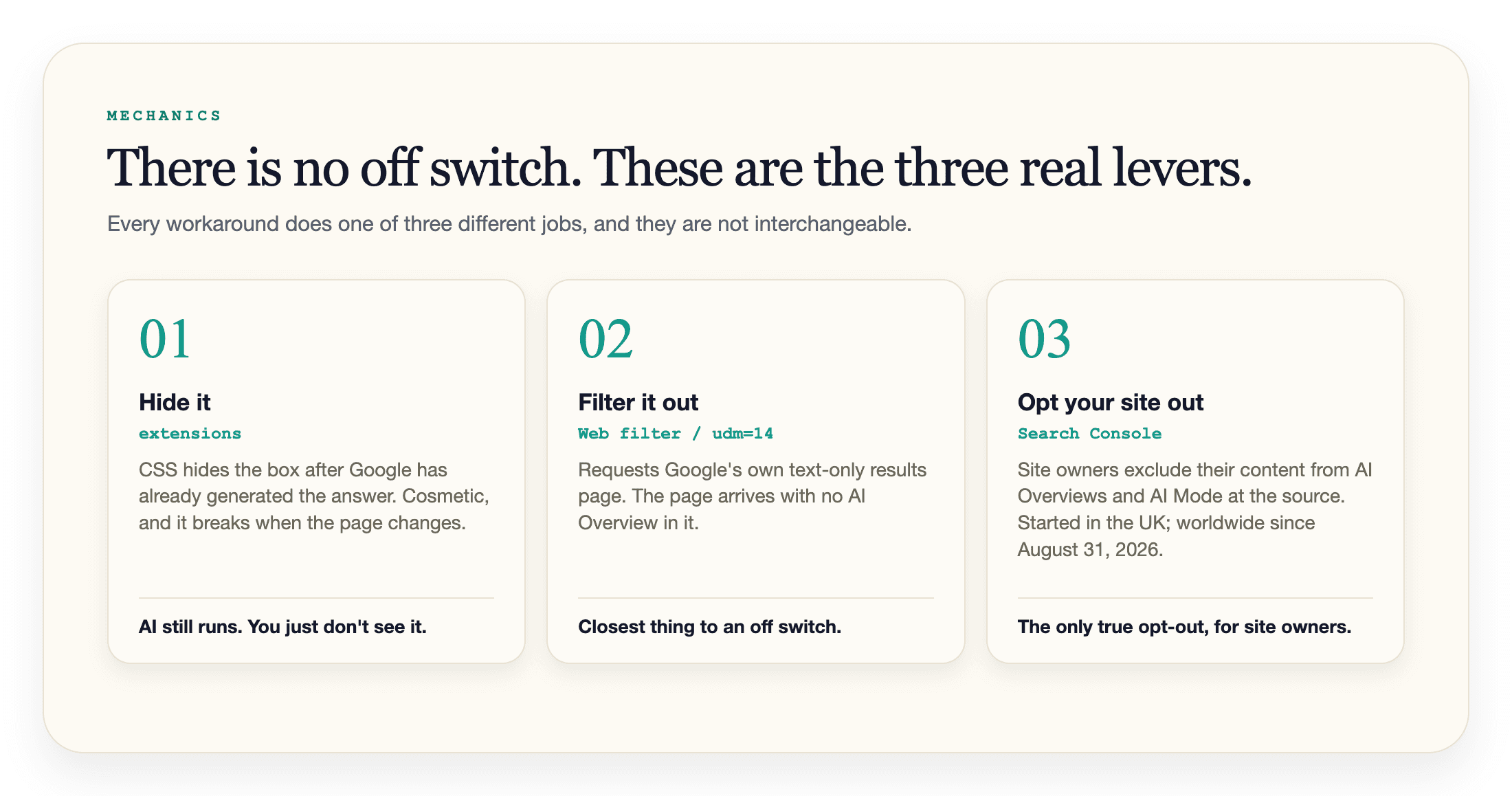
You cannot turn AI Overviews off. You can stop seeing them, which is a different thing, and for most people just as good. Every method below does one of three jobs: it requests a results page that never includes the overview, it hides the overview after it loads, or, if you own a website, it pulls your content out of the overviews Google shows other people.
The Web Filter and udm=14: The Closest Thing to an Off Switch
Google ships an AI-free version of its own results. It's called the Web filter, it sits in the tab row or under the "More" tab after you run a search, depending on the query, and it returns plain blue links with no AI Overview, no shopping modules, and no panels. Google added it in May 2024, the same month AI Overviews launched in the US.
Clicking the Web tab (in the tab row or under "More", depending on the query) on every single search is tedious. That's where udm=14 comes in.
The Web filter is just a URL parameter: append &udm=14 to any Google search URL and you land on the text-only page directly. Tedium's Ernie Smith documented the trick days after the filter shipped in a post that went viral, then put up udm14.com so anyone could use it without touching a URL. A search on udm14.com is a Google search with the parameter pre-applied; it does route through his third-party page first, so if that bothers you, the custom-engine setup below keeps everything between you and Google.
Here's what matters about udm=14 compared with every other trick in this article: the page arrives without an AI Overview in it. You are not hiding the feature on your side of the screen, you are requesting the version of Google that doesn't include it.
The trade-off is that the Web filter strips more than AI. You lose shopping results, knowledge panels, video carousels, and most local map packs. For research queries that's usually a feature. For "restaurants near me" it isn't, so keep a normal Google tab in your routine for local searches. One setting to leave alone: the Web Guide experiment in Labs re-adds AI summaries to this same Web tab (more on that below).
Make AI-Free Google Your Default Search Engine
The durable desktop fix is a custom search engine that applies udm=14 to everything you type in the address bar. Set it once and AI Overviews disappear from every search you start in the address bar.
In Chrome:
- Open
chrome://settings/searchEngines(or Settings > Search engine > Manage search engines and site search). - Under Site search, click "Add".
- Fill in the three fields: Name:
Google (Web)- Shortcut:@web- URL:{google:baseURL}search?udm=14&q=%s - Click "Add", then open the three-dot menu next to your new entry and select "Make default".
From now on, every address-bar search goes through the Web filter. Type the query, hit Enter, get links.
Edge has the same flow under Settings > Privacy, search, and services > Search and connected services > Address bar and search. Brave mirrors Chrome's settings almost exactly. In Firefox, add a custom search engine with https://www.google.com/search?udm=14&q=%s under Settings > Search. Safari on Mac allows no custom search engines at all; use a udm14.com bookmark, a Safari extension such as "udm14 for Safari" (listed on the Mac App Store; we have not tested it, so check its permissions), or the query tricks below.
Two caveats. First, this filters your results; the AI Overviews feature itself stays enabled on Google's side, and searches started on google.com directly (rather than the address bar) still show overviews. Second, Google has never documented udm=14 as a stable public interface. It has worked continuously since May 2024 and still worked on google.fr on October 16, 2026 and on google.de on October 17, 2026, but it works because Google lets it: clicking the Web tab now writes udm=web into the URL instead, so nothing guarantees the old value stays accepted.
Extensions Hide AI Overviews (but Don't Stop Them)
Browser extensions are the most popular route, and the most misunderstood one. An extension does not prevent the AI Overview from being created. Whenever a query triggers one, Google still generates the answer server-side; the extension applies CSS that hides the box before you see it. You get a cleaner page; the answer underneath was still generated.
That distinction matters more than it sounds. If your objection to AI Overviews is the interface clutter, hiding works fine. If your objection is the feature existing at all, an extension changes nothing underneath.
The best-known option is Bye Bye, Google AI, built by Tom's Hardware's Avram Piltch, who published it after arguing that AI Overviews take publisher content without sending traffic back. It's free on the Chrome Web Store, works in Edge and other Chromium browsers, and can also hide the AI Mode tab, "People also ask," and other modules you may not want. A separate extension, Hide Google AI Overviews, does the narrower version of the same job. And if you already run uBlock Origin, custom cosmetic filters can hide the overview too; treat that as the advanced route, because filters target Google's current page markup and break silently when it changes.
The catch is durability. Extensions can break whenever Google changes the page markup they target, and they get repaired on the developer's schedule, not yours. Chrome also finished disabling Manifest V2 extensions in 2025, which permanently killed older blockers that were never rebuilt for Manifest V3. If a hidden overview suddenly reappears, check the extension before assuming Google patched anything.
One safety note: install these only from the official Chrome Web Store or Firefox Add-ons listings, and read the permissions. An extension that can rewrite your Google results page can read everything on it. Skip anything that asks for more than that job requires.
Query Tricks: The -AI Operator and Friends
For one-off searches, there's a faster route: append a negative operator to your query. Searching best running shoes -AI usually returns a page with no AI Overview at all.
Here's why. A minus operator tells Google to exclude results containing that term, and queries carrying exclusion operators generally don't trigger the overview. Google doesn't document this behavior anywhere, and the exclusion is real: best running shoes -AI also drops pages that mention AI, so on AI-adjacent topics the operator distorts what you get back. The effect is per-query, so it suits the occasional search on a machine you don't control. For daily use, set a default engine instead.
Two related tricks deserve a status update, because both circulated widely and neither aged well. Adding profanity to queries suppressed AI Overviews for a while, but it distorts what Google returns, can pull results toward content you didn't want, and has been patchy since mid-2025; skip it. Voice search sometimes skips the overview and sometimes doesn't, so it was never reliable enough to recommend.
That's the pattern with query tricks generally: whack-a-mole. Google adjusts, a trick dies, a new one circulates on Reddit. The methods that persist are the ones built on Google's own Web filter; Google can quietly patch a loophole, but removing a documented feature is a much bigger step.
How to Turn Off AI Overviews on iPhone and Android
Mobile is where the frustration concentrates. The ceiling first: the Google app ships no AI-free setting, and neither does the search widget on your home screen. Every workaround below changes what happens in a browser; inside the app and widget, the only lever is typing the -AI operator into the query itself.
With that said, here is what works on a phone.
Firefox (Android and iOS) is the one mobile browser that lets you add a custom search engine by hand. On Android, tap the search engine icon in the address bar, then Search settings > Default search engine > Add search engine; on iOS, open the menu > Settings > Search > Add search engine (menu names vary by app version). Name it AI-free Google, and paste https://www.google.com/search?udm=14&q=%s as the URL. Set it as default and your mobile address bar behaves like the desktop fix above.
Chrome on Android won't let you type in a custom engine, but it will let you pick one it has "seen." Visit tenbluelinks.org once, then open Settings > Search engine in Chrome: a "Google Web" option appears under recently visited engines. Select it and address-bar searches route through the Web filter.
Safari on iPhone allows neither trick; Apple restricts search engines to a fixed list. Your options there are Chrome for iOS (tenbluelinks.org documents the same flow for it), a Safari extension such as "udm14 for Safari" (App Store; we have not tested it, so check its permissions), a bookmark, or the -AI operator. Save https://udm14.com (or a udm=14 search URL) to your home screen and run searches from it, or type the minus operator when it matters.
If that all sounds like more friction than switching apps, switch apps. DuckDuckGo offers an AI-free mode (noai.duckduckgo.com), while Bing, Brave and Opera also integrate AI features, so check each engine's settings before relying on it; for plenty of people a different search app is the practical mobile answer.
Which Method Should You Use?
Every approach trades something. This is the whole picture in one place:
| Method | Works on | Persistence | What you lose | Effort |
|---|---|---|---|---|
| Web filter (Web tab, or More > Web) | Desktop + mobile browsers | One search at a time | Shopping, panels, local packs | None |
| -AI operator | Everywhere, including the Google app (undocumented, not guaranteed) | One search at a time | Results mentioning the excluded term drop out | None |
| udm=14 bookmark (udm14.com / tenbluelinks.org) or the udm14 for Safari extension | Any browser (the extension: Safari only) | As long as you start there | Same as Web filter | One-time |
| Custom default search engine | Desktop browsers + Firefox mobile; Chrome mobile via tenbluelinks.org | Permanent for address-bar searches, until Google changes udm=14 | Same as Web filter; local searches need a detour | One-time setup |
| Extension (Bye Bye, Google AI etc.) | Desktop Chrome/Edge/Firefox (depending on the extension) | Until Google changes the page | Nothing visible; overview still generated | One-time + upkeep |
| Different search engine (DuckDuckGo, Brave, Startpage, Ecosia, Kagi) | Everywhere | Permanent | Google's index and result quality on some niches | One-time |
The short version: pick the one permanent option your platform allows, and fall back to per-query tricks everywhere else. The per-device setup is in the closing section.
Can You Turn Off AI Mode Too?
No, and the features are worth separating, because 2026 blurred them further. AI Overviews are the summary box on top of normal results, and since August 2026 that box is no longer only text: Google confirmed on August 19, 2026 that Generative UI (the interactive calculators, charts, and on-the-fly tools that until then only existed in AI Mode) had launched globally in English in AI Mode and had started rolling out in AI Overviews too, without giving a date for the full rollout. AI Mode is a full conversational search tab that Google has been pushing hard; it passed a billion monthly users by mid-2026. You can ignore the AI Mode tab, but there is no setting that removes it, and since late August 2026 Google has also been testing a layout that expands some AI Overviews directly into a fuller, AI Mode-style answer with no "Show more" click at all.
Everything in this article about udm=14 and the Web filter applies: a Web-filtered results page carries no AI Overview, no Generative UI panel, and no AI Mode answer. If you want the deeper picture of what AI Mode changes (and what it means if you run a website), we covered it in our guide to Google AI Mode SEO.
One warning for Web tab users: Google's Web Guide experiment in Search Labs reorganizes the Web tab with Gemini and reintroduces AI summaries below the links. If you enabled Web Guide out of curiosity and your "clean" tab grew AI content back, that toggle is why. Turn it off in Labs and the plain Web tab returns.
Site Owners: Opting Your Content Out of AI Overviews
Everything above is about not seeing AI Overviews. If you run a website, you have the opposite problem: your content appearing inside them, answering the searcher's question before they ever reach your page.
The concern is measurable. Pew Research Center's analysis of 900 US adults' browsing found that users clicked a traditional result on just 8% of visits when an AI summary was present, versus 15% without one, and clicked a source cited inside the summary on only 1% of visits. This is not a niche encounter: 58% of the panel hit at least one AI summary in March 2025 alone.
For years the only controls were blunt. Now there are five levers people reach for, and one of them does not do what most people think:
| Control | What it actually does | Side effects |
|---|---|---|
| Search Console "Search generative AI" toggle | Excludes your property from AI Overviews, AI Mode, and generative AI in Discover; usually takes effect in 1-2 days, longer for cached content | Rolled out worldwide by August 31, 2026: started UK-first under a CMA order dated June 3, 2026, reached other markets from July 2026; per property, with inheritance for child properties |
nosnippet robots tag | Blocks your text from AI Overviews | Also kills your normal search snippets - the description under your blue link |
data-nosnippet attribute | Excludes marked page sections only | Surgical, but you must wrap the right HTML |
max-snippet:[n] | Caps how much text Google may quote; low values reduce AI use but don't guarantee exclusion (max-snippet:0 equals nosnippet) | Shortens regular snippets too |
Blocking Google-Extended in robots.txt | Stops your content being used to train Gemini models and to ground Gemini Apps and Vertex AI answers | Does not keep you out of AI Overviews (it does not affect Search inclusion or AI Overview grounding). A common misconfiguration in the wild |
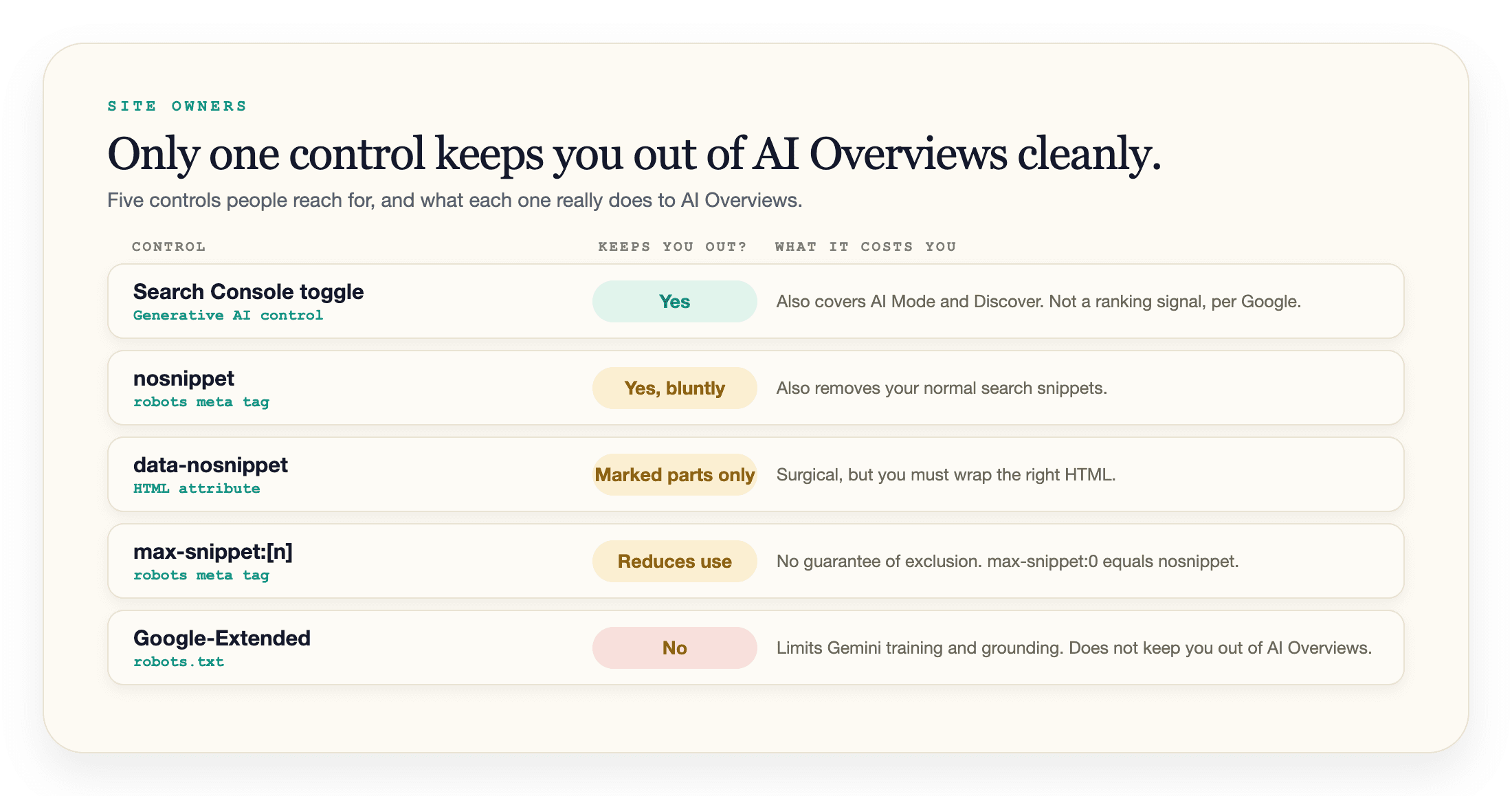
The new Search Console control is the first real opt-out: Google states it is not a ranking signal and takes effect within a day or two. But it exists because the UK's Competition and Markets Authority forced it, it started with a subset of UK properties and by August 31, 2026 had rolled out to every property worldwide. Everyone else is still choosing between snippet directives that punish normal search visibility as the price of AI exclusion.
Which is why the actual first step comes before any toggle or tag: find out whether AI Overviews cite you at all, and for which queries. The Pew numbers cut both ways: citations rarely turn into clicks, so staying in mostly buys you brand presence inside the answer, and opting out mostly costs you that presence. Either way, the decision deserves data. We built geotoolbox around exactly that measurement problem, and our guide to getting cited in AI Overviews covers the other direction, with AI Overview tracking options compared separately.
The Realistic Setup
You cannot turn off AI Overviews. You can build a search routine where you never see them: a udm=14 default engine on desktop, Firefox with a custom engine or a udm14 bookmark on your phone, and the -AI operator for everything in between. Those hold up because they lean on Google's own Web filter instead of fighting the page.
And if Google ever retires udm=14, the fallback is already in the comparison table: a search engine where AI answers are optional or absent.
If you're on the site-owner side of this, the trade-off is starker: the one clean opt-out started UK-first and has been open to every site worldwide since August 31, 2026, while the other controls trade away snippet visibility in proportion to what you mark, from single sections with data-nosnippet to every snippet with nosnippet. Before you pull anything out of AI Overviews, look at where Google's AI actually mentions and cites your domain today. A domain overview scan in geotoolbox shows you that picture across engines, so the decision rests on numbers.
Frequently Asked Questions
Can I permanently turn off AI Overviews?
No. Google's help documentation classifies AI Overviews as a core Search feature with no user setting to disable it. The closest thing to permanent is a custom default search engine with the udm=14 parameter, which routes every address-bar search to Google's AI-free Web filter.
Does udm=14 still work in 2026?
Yes. It has worked continuously since May 2024 because it's the URL form of Google's own Web filter, not an exploit. Bear in mind it strips shopping results, knowledge panels, and most local packs along with the AI, and Google has never promised the parameter is permanent.
How do I turn off AI Overviews on iPhone?
Safari won't accept custom search engines, and the Google app has no AI-free mode. Use Firefox for iOS with a custom search engine URL ending in udm=14&q=%s, Chrome for iOS with the tenbluelinks.org flow, a Safari extension such as "udm14 for Safari", a udm14.com bookmark on your home screen, or add -AI to individual queries.
Did Google remove the AI Overviews opt-out?
The Search Labs toggle people remember was an experiment control, not an opt-out; it never disabled AI Overviews in regular results. The only formal opt-out that exists now is the Search Console exclusion control for site owners, which started UK-first in June 2026 and has been available to all websites worldwide since August 31, 2026.
Sources
- AI Overviews in Google Search - Google Search Help -
support.google.com/websearch/answer/14901683 - Where Search Labs & experiments are available - Google Search Help, checked October 17, 2026 -
support.google.com/websearch/answer/14184960 - Search generative AI control - Google Search Console Help -
support.google.com/webmasters/answer/16908024 - Google users are less likely to click on links when an AI summary appears in the results - Pew Research Center, July 22, 2025 -
pewresearch.org/short-reads/2025/07/22/google-users-are-less-likely-to-click-on-links-when-an-ai-summary-appears-in-the-results/ - Does One Line Fix Google? - Tedium (Ernie Smith), May 17, 2024 -
tedium.co/2024/05/17/google-web-search-make-default/ - Google is killing the web with AI Overviews - I made an extension to block them - Tom's Hardware (Avram Piltch) -
tomshardware.com/how-to/block-google-ai-overviews - Google reacts to UK order with a Search Console AI opt-out toggle - PPC Land, June 3, 2026 -
ppc.land/google-reacts-to-uk-order-with-a-search-console-ai-opt-out-toggle/ - Google gives site owners a toggle to exit AI Overviews and AI Mode - PPC Land, July 20, 2026 -
ppc.land/google-gives-site-owners-a-toggle-to-exit-ai-overviews-and-ai-mode/ - Manifest V2 deprecation timeline - Chrome for Developers -
developer.chrome.com/docs/extensions/develop/migrate/mv2-deprecation-timeline - AI Overviews: About last week - Google (Liz Reid), May 2024 -
blog.google/products-and-platforms/products/search/ai-overviews-update-may-2024/ - Expanding AI Overviews to more places and languages - Google, May 2025 -
blog.google/products-and-platforms/products/search/ai-overview-expansion-may-2025-update/ - Sundar Pichai's I/O 2026 keynote - Google, May 2026 -
blog.google/innovation-and-ai/sundar-pichai-io-2026/ - 5 new ways to level up your learning with Search - Google (Awaneesh Verma), August 2026 -
blog.google/products-and-platforms/products/search/back-to-school-study-tools/ - Google Making AI Overviews Into AI Mode Responses - Search Engine Roundtable (Barry Schwartz), August 2026 -
seroundtable.com/google-ai-overviews-push-ai-mode-responses-41974.html - udm14.com - Ernie Smith's AI-free Google search shortcut -
udm14.com - tenbluelinks.org - Web filter setup helper for mobile browsers -
tenbluelinks.org