
Gemini Gems are reusable custom versions of Google Gemini that you set up once and reuse, instead of re-typing the same instructions into a fresh chat every time. Think of a Gem as a saved expert: you give it a name, standing instructions, and optionally a few reference files, and it behaves that way every time you open it.
What Are Gemini Gems?
A Gem is a customized configuration of Gemini: a name, a set of standing instructions, and optional reference files, saved so you can reuse it. Google calls them custom AI experts, and they are its version of ChatGPT's custom GPTs. You build it once, and from then on that Gem opens with its instructions already loaded, so you skip the setup paragraph you would otherwise paste into every new chat.
The honest framing matters here, because the marketing oversells it. A Gem is not a smarter model or a fine-tuned AI trained on your data. It is a saved prompt with a few extras bolted on. That is genuinely useful for anything you do repeatedly, but it will not make Gemini fundamentally better at a task it already struggles with. It removes the re-setup tax, not the model's limits.
Under the hood, a Gem runs on whatever Gemini model your plan gives you, which in 2026 means the Gemini 3 family (a fast Flash model on the free tier, a more capable Pro model on paid plans). There is no separate "Gem model." When Google updates the model on your plan, your Gems use it automatically, because the Gem is a configuration layer sitting on top of the large language model, not a model itself. Paid plans simply give you access to more capable models for it to run on.
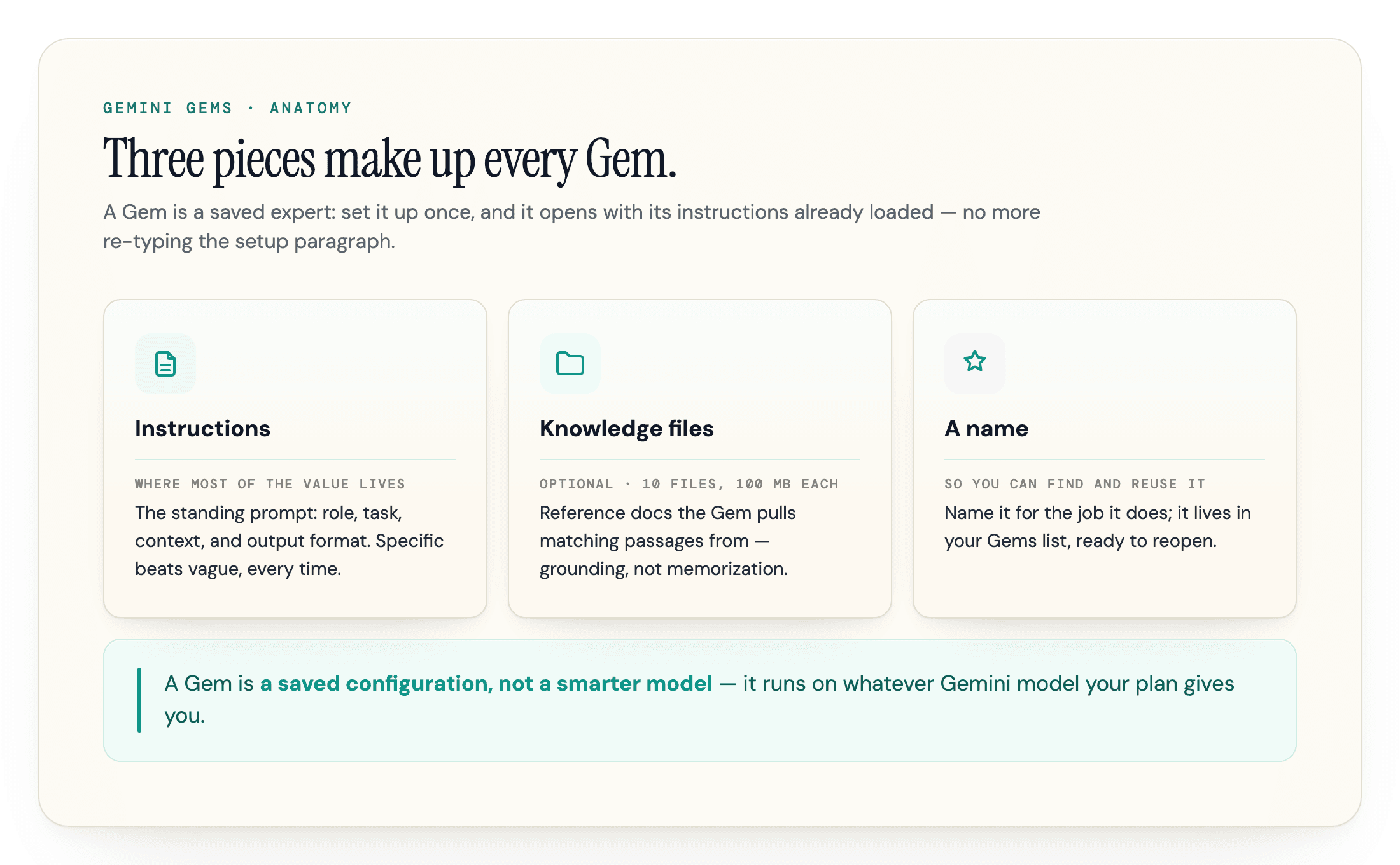
Three pieces make up every Gem:
- Instructions: the standing prompt that tells the Gem its role, task, and output style. This is where most of the value lives.
- Knowledge files: optional reference documents the Gem can pull from. Useful, but with real limits we cover below.
- A name: so you can find and reuse it from your Gems list.
Are Gemini Gems Free?
Yes. Gems are available on the free tier of Gemini, not just paid plans. This is the single most out-of-date claim in older guides. When Gems launched in August 2024 they were limited to Gemini Advanced and Workspace, so a lot of articles still say you need a subscription. That changed: Gems rolled out to free accounts, and 9to5Google reported the free mobile rollout on March 25, 2025. Most eligible free users can now build and use Gems, though availability still varies by age, region, and account type.
What your plan changes is not access to Gems, but the model behind them and the usage limits. A free Gem runs on Google's fast everyday model; a paid plan runs the same Gem on more capable models. So if a free Gem feels weaker than you expected, it is usually the model tier, not the Gem itself. If you are weighing an upgrade, our Gemini pricing guide lays out what each paid plan costs and unlocks.
| Plan | Gems access | Model behind your Gems | Best for |
|---|---|---|---|
| Free | Yes, create and use | The fast default Gemini model | Personal use and trying Gems out |
| Google AI Pro | Yes | Access to the more capable Pro and thinking models | Daily heavy use, harder reasoning tasks |
| Business / Enterprise | Yes, with admin controls | Workspace models plus org-level sharing governance | Teams that need to share and govern Gems |
One practical note on where you can build them. You can use Gems anywhere the Gemini app runs, including Android and iOS, but you create and edit them on the web at gemini.google.com. The mobile apps are for running your Gems, not building them.
How to Create a Gemini Gem, Step by Step
Building your first Gem takes about two minutes.
- Open gemini.google.com and click "Explore Gems" in the left sidebar to open the Gem manager (Google's step-by-step Help page mirrors this flow).
- Click "New Gem" to start a blank one.
- Give it a name that describes the job, so you can find it later.
- Write the instructions. This is the part that matters most, and we break down how to write good ones in the next section.
- Add knowledge files if the Gem needs to reference specific documents, like a style guide or a product sheet.
- Optionally pick a default tool so every chat with the Gem opens in Deep Research, Canvas, or image mode instead of a plain chat (covered in its own section below).
- Use the preview panel on the right to test it with a real prompt before you commit.
- Click "Save".
Two things trip people up here. First, the preview panel is not the same as saving. You can test a Gem all day in preview, but if you close the tab without clicking "Save", it is gone. If a Gem you "made" has vanished, this is usually why.
Second, you do not have to write polished instructions yourself. Google added a rewrite helper (the wand icon) that takes a rough description of what you want and expands it into structured instructions. It is a fast way to get a first draft you can then tighten by hand.
After you save, the Gem lives in your Gem manager, where you can edit, pin, or delete it. Edits apply the next time you open the Gem, and each chat with a Gem is its own thread, so changing the instructions does not rewrite a conversation you already started.
Start from a copy, not a blank Gem
If you are not sure where to start, copy a premade Gem instead of building from zero. Open one from the Gem manager, make a copy, and edit its instructions. You inherit a working structure and only change what you need.
Writing Gem Instructions That Actually Work
The instructions are where a Gem succeeds or fails. A vague instruction produces a vague Gem, and most disappointing Gems are disappointing because the prompt was thin, not because the feature is weak.
A reliable structure is persona, task, context, and format. Tell the Gem who it is, what job it does, what background it should assume, and how the output should look. The more specific each part is, the less you have to correct later.
Here is the difference in practice. A weak instruction reads "You are a helpful marketing assistant." A strong one reads "You are a B2B SaaS copywriter. When I paste a feature description, return three landing-page headlines under 10 words, each leading with the customer outcome, no exclamation points, no buzzwords." The second version makes dozens of small decisions for the Gem up front, so you stop re-explaining them.
Three habits make instructions noticeably better:
- Write the constraints, not just the goal. Telling a Gem what not to do (no jargon, no em dashes, never invent statistics) prevents the failure modes you would otherwise fix by hand every time.
- Iterate in the preview panel. Run three or four real prompts in preview, watch where the output drifts, and tighten the instruction that caused the drift. Treat it like editing, not a one-shot.
- Format the instructions, do not just write them. The most common complaint about Gems is that the instructions do not stick. A big part of the fix is structure: break a longer instruction block into Markdown headings, bullet lists, and numbered steps instead of one dense paragraph, so the Gem parses each rule cleanly. A fast sanity check that pays for itself is to ask the Gem to restate its instructions back to you, then correct whatever it misread before you rely on it.
Keep instructions tight, too. Your instructions and the live conversation share the same context window, the fixed amount of text the model can hold at once, so a bloated instruction block leaves less room for the actual work.
Knowledge Files: What Works and What Breaks
Knowledge files are the most misunderstood part of Gems, and the source of the most common complaint: "my Gem ignores the document I gave it." Understanding why fixes most of the frustration.
When you attach a file to a Gem, the Gem does not memorize it. It pulls in the passages that match your question, the same idea as retrieval-augmented generation. If your question lines up with what is in the file, you get a grounded answer. If nothing matches, the Gem can fall back to its general training and answer confidently without being grounded in your file. That silent fallback is why a Gem can look like it is ignoring your document, and it is the same gap behind most AI hallucinations: no matching source, so the model fills it in.
A few practical realities Google does and does not document:
- The limits are 10 files, 100 MB each. Google's documentation points to up to 10 knowledge files of 100 MB each, so a Gem holds a handful of reference docs, not a library. ChatGPT's custom GPTs allow 20.
- Google Docs and Sheets stay live. Docs and Sheets you add from Drive reflect their latest version, so updating the doc updates what the Gem knows. Other uploaded files are static snapshots by comparison.
- For large document sets, use the right tool. If you are trying to load dozens or hundreds of documents, a Gem is the wrong container. Google's NotebookLM is built for large source libraries and grounded answers across them, which is a different job from a reusable Gem.
Give a Gem a Default Tool
Beyond the three core pieces, a Gem can also open in a specific tool instead of a plain chat. The Gem editor has a default tool dropdown that sets what every new chat with that Gem starts in: no default tool (regular chat), Create image, Canvas, Deep Research, Create music, or Guided Learning. A step-by-step 2026 walkthrough shows where to find it. Set it once and you stop choosing the mode by hand every time.
This is the one extra that changes what the Gem does, not just what it says. A research Gem set to Deep Research opens straight into a planned, cited report; a drafting Gem set to Canvas opens the editing surface. It is the closest a Gem comes to behaving like a workflow rather than a saved prompt.
You can automate a repeat task with Scheduled Actions, a Gemini feature (launched in 2025) that runs a saved prompt on a daily, weekly, or monthly schedule and returns the result in your Gemini chat, per Google. It runs a standalone prompt rather than a Gem itself, but you can paste a Gem's instructions into that prompt to get the same recurring output, like a weekly brand-answer check. One caveat: Scheduled Actions is a paid feature (Gemini Pro or Ultra, plus some Workspace plans), capped at around 10 active actions, so unlike Gems themselves it is not part of the free tier.
Premade Gems Worth Copying
Google ships five built-in Gems, and the fastest way to learn the feature is to copy one and read how its instructions are written. The five, per Google's own blog, are:
- Brainstormer: generates ideas and concepts when you are stuck
- Writing editor: reviews tone, clarity, and structure
- Coding partner: helps write, explain, and debug code
- Career guide: advice on roles, skills, and professional growth
- Learning coach: breaks down hard topics into steps
Make a copy of whichever is closest to your use case, then narrow it. The Writing editor, for example, becomes far more useful once you paste your actual brand voice rules into its instructions instead of leaving it generic.
Google is also experimenting with Gems built from its Opal tool, surfaced as "Gems from Labs," which some coverage calls "Super Gems." These are mini-app style Gems aimed at multi-step workflows rather than a single saved prompt. As of mid-2026 they are experimental and limited in availability, so treat them as a preview, not a stable feature to build a workflow around yet.
Gemini Gems vs ChatGPT Custom GPTs
If you already use ChatGPT's custom GPTs, Gems will feel familiar, with some real gaps in both directions. The short version: Gems are tightly wired into Google's apps, while custom GPTs have a head start on extensibility and distribution. For a fuller side-by-side of the two assistants overall, see our Gemini vs ChatGPT comparison.
| Capability | Gemini Gems | ChatGPT Custom GPTs |
|---|---|---|
| Custom instructions | Yes | Yes |
| Knowledge files | Up to 10, with live Google Drive sync | Up to 20, static uploads |
| External API actions | No (connects to Google apps only) | Yes, via Actions |
| Public marketplace | No | Yes, the GPT Store |
| Image generation | Via a default-tool setting (open every chat in Create image mode) | Yes, built in |
| Sharing | Yes, Drive-style link and roles | Yes, link or store listing |
| Free tier | Yes | Yes, with limits |
Gems win on the Google ecosystem. A Gem reaches into Gmail, Docs, Drive, Maps, and YouTube through the account you already use, and you can pull live context mid-chat by typing @ to mention a connected app. For eligible Workspace users, Gems also appear in the side panel of Docs, Gmail, and Sheets, so the custom expert sits right where the work happens. They lose on reach and extensibility, with no public store to distribute a Gem and no Actions-style way to call an outside API. If you want to publish an assistant to strangers or wire it to a third-party service, ChatGPT is ahead. If you live in Google Workspace, Gems are the lower-friction choice.
Sharing Gems and Fixing Common Problems
You can share a Gem with other people. Google launched Gem sharing on September 18, 2025, and it works like sharing a Google Drive file: open the Gem manager, hit share, then add people by email or send a link, with viewer or editor access. Older guides that say Gems cannot be shared are out of date.
A few things still block sharing, and they explain most of the "I can't share my Gem" complaints. If the Gem uses knowledge files that are not shareable, the share option is grayed out. In a Workspace organization, an admin can disable sharing or restrict it to your domain, so a Gem that will not share is sometimes an org policy, not a bug. And when you share a Gem with attached files, you are prompted to share those files too, so recipients can actually use it.
The other recurring problem is the Gem that will not save, the "sorry, we can't save your Gem" message. In practice this usually comes from one of three things: you are signed into a mix of personal and Workspace accounts in the same browser, so the Gem is trying to save to the wrong place; the instructions tripped a content filter, which overly absolute or sensitive wording can do; or you edited an existing Gem and never clicked the update button to commit the change. Sign into a single account, soften the wording, and confirm you actually saved.
Build a Gem to Watch How AI Describes Your Brand
One of the most useful marketing Gems is not a copywriter but a brand-answer checker. Build a Gem whose standing instructions describe your brand, your main competitors, and the questions your buyers ask AI tools. Run those questions once with no knowledge attached, to see what the model says about you on its own, then attach your real product facts and run them again. The gap between the two answers is exactly where AI is getting your brand wrong. Set that Gem's default tool to Deep Research, and every run comes back as a sourced report you can compare over time.
In our experience, this matters because AI search now answers a growing share of brand questions before anyone reaches your site, and what the model says about you is frequently stale or wrong. A checker Gem gives you a fast, repeatable way to spot those gaps without rebuilding the prompt each time. Closing them is a separate job: an optimize-for-AI-search playbook improves the source material the engines draw on, so the answer they generate next time lands closer to the truth.
Frequently Asked Questions
What are gems in Gemini?
Gems are reusable custom versions of Google Gemini. You give one a name, a set of standing instructions, and optionally some reference files, then reuse it instead of re-typing the same setup into a new chat. They are Google's equivalent of ChatGPT's custom GPTs.
Are Gemini Gems free?
Yes. Gems are available on the free tier of Gemini, not only on paid plans. They launched as a paid feature in 2024 but rolled out to free accounts in 2025. Your plan changes the underlying model and usage limits, not whether you can create Gems.
How many knowledge files can a Gemini Gem use?
You can attach up to 10 knowledge files per Gem, each up to 100 MB, per Google's documentation. That makes Gems good for a handful of reference documents but a poor fit for a large library. For dozens or hundreds of documents, Google's NotebookLM is the better tool.
Can you share a Gemini Gem?
Yes, since September 2025. Sharing works like a Google Drive file: add people by email or share a link with viewer or editor access. Sharing can be blocked if the Gem uses non-shareable knowledge files or if a Workspace admin has disabled it for your organization.
Can a Gemini Gem use tools like Deep Research or Canvas?
Yes. Each Gem has a default tool setting, so you can make every chat with that Gem open directly in Deep Research, Canvas, image creation, music, or Guided Learning instead of a plain conversation. A drafting Gem set to Canvas, for example, opens the editing surface every time instead of a standard chat.
Do Gemini Gems use a different AI model?
No. A Gem is just saved configuration, not a separate model, so it runs on whatever Gemini model your plan includes and upgrades automatically when Google ships a newer one. Paid plans let you run a Gem on a more capable model for harder tasks.
Take It Further
Gems are worth the two minutes it takes to build one, especially for any task you repeat weekly. Start by copying a premade Gem, write specific instructions, and remember that knowledge files ground the Gem only when your question matches what is in them.
The bigger point for marketers is that a Gem is only as accurate as the facts you give it, and so is every other AI engine answering questions about your brand. Before you can shape what AI says about you, the engines have to be able to find and correctly read your site in the first place. You can check that groundwork by running your domain through geotoolbox's AI readiness check.
Sources
- 5 tips on getting started with Gems, your custom AI experts (Google) -
blog.google/products-and-platforms/products/gemini/google-gems-tips - Gem sharing in the Gemini app and Workspace (Google Workspace Updates) -
workspaceupdates.googleblog.com/2025/09/gem-sharing-gemini-app-workspace.html - Free Gemini users can now access Gems on Android, iOS (9to5Google) -
9to5google.com/2025/03/25/gemini-gems-free-mobile - Upload Google Docs and other file types to Gems (Google Workspace Updates) -
workspaceupdates.googleblog.com/2024/11/upload-google-docs-and-other-file-types-to-gems.html - Build custom experts with Gems (Google Gemini) -
gemini.google/overview/gems - Tips for creating custom Gems (Gemini Apps Help) -
support.google.com/gemini/answer/15235603 - Upload and analyze files in Gemini Apps (Gemini Apps Help) -
support.google.com/gemini/answer/14903178 - How to use Gemini Gems: build custom AI assistants (2026) -
ai-toolbox.co/gemini-management-and-productivity/how-to-use-gemini-gems-create-custom-2026 - Gemini app launches scheduled actions to help you stay productive (Google) -
blog.google/products-and-platforms/products/gemini/scheduled-actions-gemini-app